

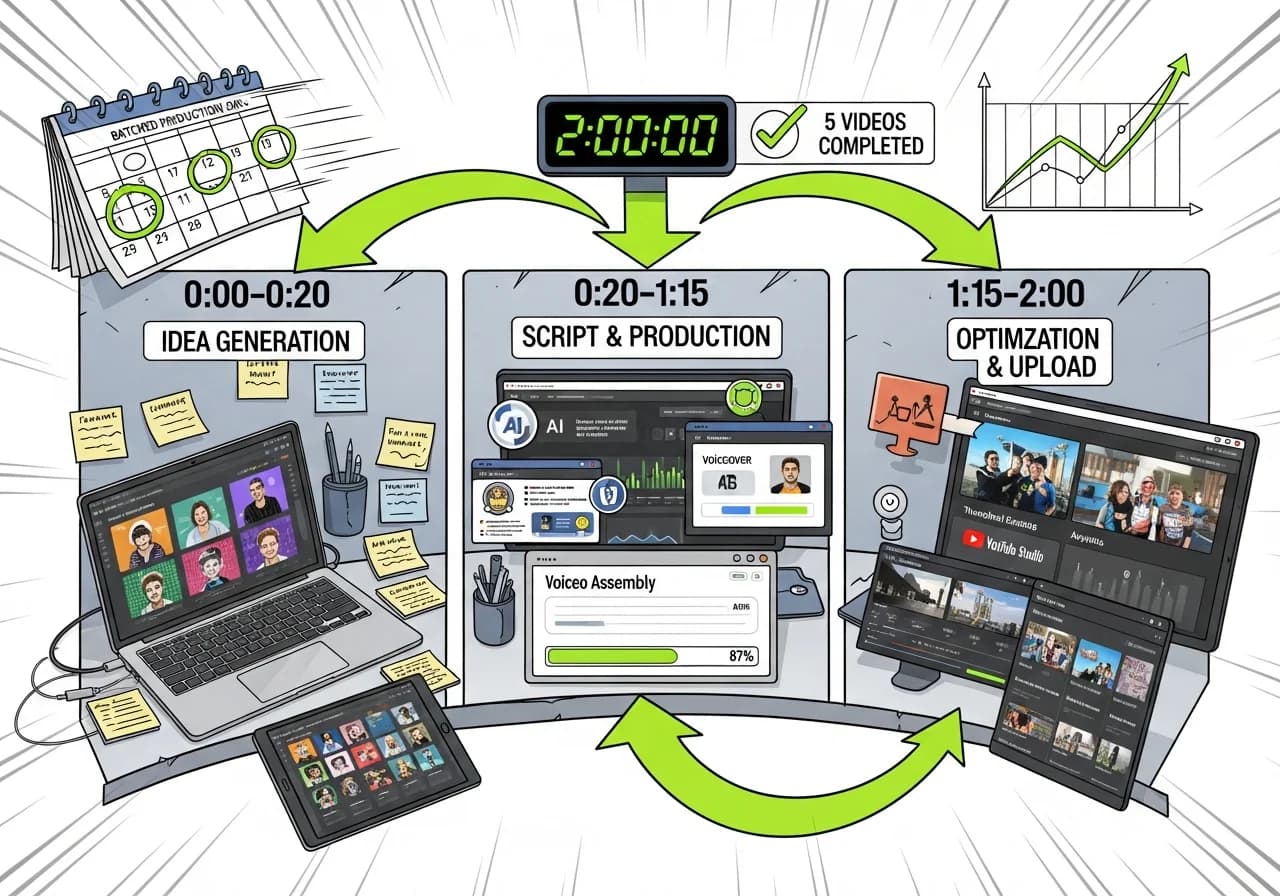
The 2-Hour Faceless Channel Workflow: From Idea to Uploaded Video
The 2-hour faceless video workflow produces 3-5 complete videos through batch processing: 20 minutes for bulk script generation, 60 minutes for parallel video assembly while voiceovers render simultaneously, and 40 minutes for thumbnail creation and upload optimization, compared to traditional 90-minute-per-video sequential workflows.
Table of Contents
- Why Most Workflows Take 6+ Hours Per Video
- The Pre-Work That Makes 2 Hours Possible
- The 2-Hour Batch Production Timeline
- Phase 1: Bulk Script Generation (0:00-0:20)
- Phase 2: Parallel Video Assembly (0:20-1:20)
- Phase 3: Thumbnail Batch Creation (1:20-1:45)
- Phase 4: Upload Optimization (1:45-2:00)
- The Parallel Processing Strategy
- Template Systems That Eliminate Decisions
- Scaling to 20-30 Videos Monthly
Why Most Workflows Take 6+ Hours Per Video
The average creator spends 90-180 minutes per faceless video. Here's where that time actually goes:
The Time Breakdown of Traditional Workflow
Per-video sequential process:
Topic selection & research (25 minutes):
- Browse trending topics without clear criteria
- Check 5-10 competitor channels
- Read comments to gauge interest
- Second-guess topic choice multiple times
Script generation (20 minutes):
- Prompt AI tool for script
- Read through output
- Manually restructure for video format
- Add visual markers and pacing notes
Voiceover generation (15 minutes):
- Wait for AI voice to render (5-8 minutes)
- Listen to full output
- Regenerate sections with errors
- Download and organize file
Visual sourcing (35 minutes):
- Search stock footage sites for relevant clips
- Download 15-20 clips one by one
- Organize files in folders
- Make substitution choices
Video editing (45 minutes):
- Import all assets to editor
- Sync voiceover to visuals
- Add captions and text overlays
- Adjust timing and transitions
- Export (5-10 minute render)
Thumbnail creation (20 minutes):
- Open design tool
- Create layout from scratch
- Test different visual concepts
- Export and review
Upload & optimization (15 minutes):
- Upload video to YouTube
- Write title and description
- Add tags and timestamp markers
- Set thumbnail and schedule
Total: 175 minutes (2 hours 55 minutes)
And that's for experienced creators. Beginners often take 3-4 hours per video.
The Sequential Processing Problem
The killer isn't any single step. It's context switching.
According to Speechmatics' faceless channel workflow research, "When faceless video production is treated as a workflow, visuals and narration are designed to support each other rather than compete for attention."
But most creators work sequentially:
Topic → Script → Voice → Visuals → Edit → Thumbnail → Upload
Each transition requires:
- Closing one tool, opening another (2-3 minutes)
- Re-orienting to where you were (3-5 minutes)
- Making fresh decisions (5-10 minutes)
Seven transitions × 10 minutes average = 70 minutes of pure overhead.
The Decision Fatigue Tax
Every video requires dozens of micro-decisions:
- Which stock clip for this moment?
- Should I adjust this sentence?
- Does this thumbnail text work?
- Which tag should I prioritize?
By video 2 or 3 in a session, decision quality plummets. You're not slower because you're tired. You're slower because your brain is exhausted from constant choices.
For comprehensive automation stack alternatives, see our complete automation guide.
The Pre-Work That Makes 2 Hours Possible
You can't compress 175 minutes to 40 minutes per video through speed alone. You do it through preparation.
Weekly Pre-Work Session (60-90 minutes)
Schedule this separately from production:
AutoClips' automation methodology recommends: "Spend 1-2 hours weekly finding 7-14 video topics. Use Reddit, Quora, YouTube comments, and trending tools."
What this session includes:
Topic Research (30 minutes):
- Use VidIQ or TubeBuddy keyword tools
- Identify 20-30 potential topics with search volume data
- Check competitor channels for proven topic performance
- Note trending patterns in your niche
Topic Validation (20 minutes):
- Filter topics by: search volume (1K+ monthly), competition level (winnable), alignment with your niche
- Rank topics by monetization potential (high-CPM keywords)
- Create content calendar with 7-14 scheduled topics
Visual Asset Organization (15 minutes):
- Download 50-100 stock clips organized by category
- Create folders: Transitions, Nature, Tech, People, Abstract, etc.
- Save Canva thumbnail templates (5-10 variations)
- Bookmark high-performing competitor thumbnails for reference
Formula Documentation (10 minutes):
- Document your best-performing title structures
- Save description templates with proper formatting
- Create tag lists for different content types
- Note optimal posting times based on your analytics
This 90-minute session eliminates 30-40 minutes of decision-making per video during production, paying for itself after just 2-3 videos.
The Content Calendar Advantage
Successful faceless channel creators recommend: "Instead of random video ideas, create content series that build on each other."
Why calendars accelerate production:
Without calendar: "What should I make today?" → 15-20 minutes of browsing and indecision
With calendar: "Today is Video #3 from psychology facts cluster" → 0 minutes, start producing immediately
The calendar eliminates the production-blocking question: "What do I make?"
The 2-Hour Batch Production Timeline
Here's the actual minute-by-minute breakdown for producing 5 videos:
Production Session Overview
Time blocks:
- 0:00-0:20 (20 min): Bulk script generation (all 5 videos)
- 0:20-1:20 (60 min): Parallel video assembly while voiceovers render
- 1:20-1:45 (25 min): Thumbnail batch creation (5 thumbnails)
- 1:45-2:00 (15 min): Upload optimization and scheduling
Total: 2 hours for 5 videos = 24 minutes per video
Compare to sequential processing: 175 minutes per video × 5 = 14.5 hours
Time saved: 12.5 hours (86% reduction)
Critical Success Factors
For this timeline to work:
- Pre-work completed: Topics pre-selected, no research needed
- Tools open and ready: No time wasted logging in or configuring
- Assets organized: Visual libraries pre-sorted, templates ready
- Formula documented: Titles/descriptions follow proven template
- Uninterrupted time: No emails, meetings, or distractions
Without these conditions, expect 3-4 hours instead of 2.
Phase 1: Bulk Script Generation (0:00-0:20)
The first phase generates all 5 scripts in a single 20-minute burst.
Why Bulk Generation Works
Sequential approach: Generate script for Video 1 (5 min) → Generate script for Video 2 (5 min) → Repeat... Total: 25 minutes
Bulk approach: Generate all 5 scripts simultaneously or in rapid succession Total: 20 minutes
The saved time comes from:
- One-time tool setup (login, navigate, configure)
- Pattern recognition (after script 2-3, you spot common issues faster)
- Momentum (no context switching between tasks)
Bulk Script Workflow
Minute 0-5: Setup and batch prompts
Open your script generator (Virvid's AI script tool, ChatGPT, or vidIQ).
Instead of prompting one topic at a time, create a batch template:
Generate 5 YouTube Shorts scripts (60 seconds each) on these psychology topics:
1. Why you overthink at night
2. The serial position effect in memory
3. Confirmation bias in daily decisions
4. Why first impressions are usually wrong
5. The Zeigarnik effect and productivity

Format each as:
[HOOK] (0-3 sec): Surprising statement
[CONTEXT] (3-8 sec): Why this matters
[INSIGHT] (8-45 sec): Core information with example
[CTA] (45-55 sec): Follow for daily psychology
[VISUAL NOTES]: Scene suggestions
Some AI tools can generate multiple scripts from one prompt. If yours can't, copy-paste this prompt 5 times with different topics.
Minute 5-15: Review and light editing
Skim all 5 scripts checking for:
- Hook quality (does it stop scrolling?)
- Length (60 seconds when read aloud?)
- Visual markers present
- CTA included
Don't perfect them. You're looking for fatal flaws only. Acceptable is good enough.
Minute 15-20: Voiceover queue
If using ElevenLabs, Murf, or similar:
- Open 5 browser tabs
- Paste one script per tab
- Click generate on all 5
- Let them render while you move to Phase 2
If using all-in-one tools like Virvid: Scripts auto-convert to video, voiceovers generate automatically.
Result: 5 scripts ready, 5 voiceovers rendering in parallel
For detailed script optimization strategies, see our AI script generator comparison.
Phase 2: Parallel Video Assembly (0:20-1:20)
While voiceovers render in the background, you're assembling videos. This is where batch processing creates massive time savings.
The Assembly Strategy
Traditional sequential editing:
- Edit Video 1 completely (45 min)
- Edit Video 2 completely (45 min) Total: 225 minutes for 5 videos
Batch assembly approach:
- Lay out all 5 video timelines (10 min)
- Add B-roll to all 5 (20 min)
- Add captions to all 5 (15 min)
- Final review of all 5 (15 min) Total: 60 minutes for 5 videos
You're doing the same tasks, but in batches instead of sequentially.
Minute 20-30: Timeline Setup
Open your video editor (CapCut, DaVinci Resolve, or integrated platform).
Create 5 project timelines named:
- Video_01_Overthinking
- Video_02_Serial_Position
- Video_03_Confirmation_Bias
- Video_04_First_Impressions
- Video_05_Zeigarnik_Effect
For each timeline:
- Import voiceover (should be rendered by now, or import when ready)
- Set duration based on voiceover length
- Add audio track and video track
- Save project
Result: 5 empty timelines ready for visuals
Minute 30-50: Bulk B-Roll Addition
This is where pre-organized asset libraries save massive time.
With organized libraries: Open your pre-sorted stock footage folders.
Video 1 (Brain/Thinking theme):
- Grab 3 clips from "Brain/Science" folder
- Drag to timeline, trim to match audio sections
- Move to next video
Video 2-5: Repeat pattern, 4 minutes each
Total: 20 minutes for all 5 videos
Without organized libraries:
- Search "brain thinking" on Pexels (3 min)
- Download 3 clips (2 min)
- Import to editor (1 min)
- Repeat for each video
Total: 30 minutes per video = 150 minutes for 5 videos
Organized libraries save 130 minutes.
Minute 50-65: Bulk Caption Addition
Auto-caption tools (CapCut, Descript, or platform built-in):
Instead of processing one video completely, batch the caption workflow:
- Generate captions for Video 1 (2 min)
- While it processes, generate for Video 2 (2 min)
- Return to Video 1, apply styling (1 min)
- Move to Video 2 styling while Video 3 processes
- Continue pattern
Time per video: 3 minutes (15 minutes total)
Caption styling should follow your template:
- Font: Montserrat Bold
- Size: Large (readable on mobile)
- Color: White with black outline
- Position: Center or lower third
No creative decisions. Apply template and move on.
Minute 65-80: Final Review and Export
Quick quality check for each video:
- Hook in first 3 seconds? ✓
- Audio sync correct? ✓
- Captions readable? ✓
- CTA present? ✓
Export all 5 videos. Most editors can queue exports.
Result: 5 complete videos rendering
Phase 3: Thumbnail Batch Creation (1:20-1:45)
While videos export, create thumbnails for all 5.
The Template Approach
According to The Aesthetic Life's automation research, successful faceless channels "use templates to maintain consistency and brand recognition."
Why templates accelerate thumbnail creation:
Without template:
- Open Canva
- Stare at blank canvas
- Try different layouts (10 min)
- Add elements (5 min)
- Choose colors (5 min) Total: 20 minutes per thumbnail
With template:
- Open saved template
- Change text (2 min)
- Swap background image (1 min)
- Export (1 min) Total: 4 minutes per thumbnail
Thumbnail Batch Workflow
Minute 80-85: Template selection
Open Canva or Photoshop with your pre-saved thumbnail templates.
Choose template based on content type:
- Psychology facts: Clean, minimal, text-focused
- True crime: Dark, mysterious, dramatic
- Finance: Professional, data-oriented
Minute 85-105: Bulk customization
For each video (4 minutes each):
- Duplicate template (10 sec)
- Change main text to video topic (1 min)
- "Your BRAIN is lying to you"
- "Why you CAN'T remember"
- "Your bias is KILLING decisions"
- Swap background image from your stock library (1 min)
- Adjust colors if needed (30 sec)
- Export (30 sec)
- Move to next thumbnail
Pattern recognition accelerates this: By thumbnail 3, you're noticing what works and moving faster.
Minute 105: Quality check
Line up all 5 thumbnails side by side.
Check:
- Text readable at small size?
- Colors contrast well?
- Faces/emotions clear (if present)?
- Brand consistency maintained?
Result: 5 thumbnails ready
Phase 4: Upload Optimization (1:45-2:00)
Final 15 minutes: get everything uploaded and scheduled.
The Upload Formula
Sequential uploading wastes time through repeated form-filling.
Batch approach:
Minute 105-110: Prepare all metadata
Open a Google Doc or spreadsheet with 5 rows.
For each video, fill in:
Title (use your proven formula):
- "Your Brain LIES to You at Night (Here's Why)"
- "Why You Can't Remember Names (Serial Position Effect)"
- "Your Confirmation Bias is RUINING Decisions"
Description (use template):
[Hook sentence about the video]

In this video, you'll discover:
• [Key point 1]
• [Key point 2]
• [Key point 3]

[CTA to subscribe]

#psychology #brain #shorts
Tags (use pre-made tag list): psychology, brain facts, psychology facts, neuroscience, etc.
Minute 110-115: Bulk upload
Open YouTube Studio.
For Video 1:
- Upload video file
- While it uploads, paste title (10 sec)
- Paste description (10 sec)
- Upload thumbnail (10 sec)
- Add tags (10 sec)
- Set as "Scheduled" for optimal posting time
- Move to Video 2
By Video 3-5, muscle memory kicks in. Each upload takes 2-3 minutes.
Minute 115-120: Final schedule review
Check your content calendar:
- Video 1: Posts Monday 6 PM
- Video 2: Posts Tuesday 6 PM
- Video 3: Posts Wednesday 6 PM
- Video 4: Posts Thursday 6 PM
- Video 5: Posts Friday 6 PM
Stagger posts for algorithm favor. Never dump all 5 at once.
Result: 5 videos scheduled, ready to publish automatically
The Parallel Processing Strategy
The 2-hour workflow works because of parallel processing, not speed.
Sequential vs Parallel Time Comparison
Sequential (traditional):
Script 1 → Voice 1 → Edit 1 → Thumb 1 → Upload 1
(90 min)
Script 2 → Voice 2 → Edit 2 → Thumb 2 → Upload 2
(90 min)
[Continue for 5 videos]
Total: 450 minutes (7.5 hours)
Parallel (batch):
All Scripts → All Voices (rendering in background)
              ↓
        While rendering, organize assets
              ↓
        All Editing (videos queued)
              ↓
        All Thumbnails (videos exporting)
              ↓
        All Uploads
Total: 120 minutes (2 hours)
What Runs Simultaneously
During voiceover rendering (5-10 minutes):
- You're organizing B-roll folders
- Checking previous video analytics
- Confirming content calendar
During video export (5-10 minutes):
- You're creating thumbnails
- Writing metadata
- Planning next week's topics
During uploads (5-10 minutes):
- You're scheduling posts
- Responding to comments on previous videos
- Reviewing performance data
Computer processes run while you do other productive tasks. Zero idle time.
Tools That Enable Parallel Processing
Requires these capabilities:
- Bulk script generation: AI tools that handle multiple prompts efficiently
- Simultaneous rendering: Voiceover tools that queue multiple generations
- Batch exports: Video editors that queue multiple project exports
- Template systems: Design tools with reusable thumbnail templates
Best tool combinations for parallel workflows:
Budget approach ($0-30/month):
- ChatGPT (free) for scripts
- ElevenLabs (free tier) for voices
- CapCut (free) for editing
- Canva (free) for thumbnails
Pro approach ($50-100/month):
- Jasper or vidIQ for scripts
- ElevenLabs Pro for voices
- Adobe Premiere for editing
- Photoshop for thumbnails
Integrated approach ($19-50/month):
- Virvid or InVideo for all-in-one production
- Eliminates tool-switching overhead
- Built-in parallel processing
For detailed tool comparisons, see our specialist versus all-in-one stack analysis.
Template Systems That Eliminate Decisions
Templates aren't just about speed. They eliminate decision fatigue.
The Decision Elimination Principle
According to research on decision fatigue, humans make progressively worse choices after ~50 decisions in a session.
Decisions per video without templates:
- Topic selection: 1
- Script structure: 10-15 choices
- Voiceover tone: 1
- B-roll selection: 15-20 choices per video
- Caption style: 5-8 choices
- Thumbnail layout: 10-15 choices
- Title wording: 5-10 variations tested
- Description format: 5-8 choices
Total: 50-70 decisions per video
For 5 videos: 250-350 decisions
By video 4, you're mentally exhausted and making poor choices.
Decisions per video with templates:
- Topic selection: 0 (pre-selected in calendar)
- Script structure: 0 (format template)
- Voiceover tone: 0 (default voice saved)
- B-roll selection: 2-3 (from organized library)
- Caption style: 0 (template applied)
- Thumbnail layout: 0 (template duplicated)
- Title wording: 2-3 (formula filled in)
- Description format: 0 (template pasted)
Total: 4-6 decisions per video
For 5 videos: 20-30 decisions
You're making 90% fewer decisions, preserving mental energy for creative work that matters.
Building Your Template System
What to template:
1. Script Format Templates
Create 3-5 templates for your common content types:
Psychology Facts Template:
[HOOK] (0-3 sec): "Your [X] is [surprising claim]"
[CONTEXT] (3-8 sec): "Here's the science..."
[FACT 1] (8-20 sec): [Specific phenomenon with example]
[TRANSITION] (20-22 sec): "But here's what's weird..."
[FACT 2] (22-40 sec): [Related insight with example]
[PAYOFF] (40-50 sec): "So that's why [explanation]"
[CTA] (50-55 sec): "Follow for daily psychology"
2. Visual Template Library
Organize by category with naming convention:
- TRANS_01_fade_black
- TRANS_02_wipe_right
- BRAIN_01_scan_rotate
- BRAIN_02_neurons_fire
- PEOPLE_01_thinking_desk
- PEOPLE_02_stressed_woman
Naming lets you grab assets without previewing.
3. Thumbnail Templates
Create 5 base templates, each in 3 color variants (15 total):
- Template A: Big bold text, minimal image
- Template B: Split screen, text + face
- Template C: Before/after comparison
- Template D: Number-focused (for lists)
- Template E: Question-based
Save with descriptive names:
- Thumb_A_Bold_Text_Blue
- Thumb_A_Bold_Text_Red
- Thumb_B_Split_Purple
4. Metadata Templates
Save proven formulas in a doc:
Title Formulas:
- "Your [BODY PART] [VERB] [Surprising Action] (Here's Why)"
- "Why You Can't [Common Activity] ([Scientific Term] Effect)"
- "The [Number] [Thing] That [Unexpected Result]"
Description Template:
[One-sentence hook about video topic]

In this Short, you'll discover:
• [Insight 1]
• [Insight 2]
• [Insight 3]

Want more psychology facts?
👉 Follow for daily brain science

#[niche] #[keyword1] #[keyword2] #shorts
Scaling to 20-30 Videos Monthly
Once you master the 2-hour workflow for 5 videos, scaling to 20-30 monthly becomes straightforward.
The Weekly Production Rhythm
For 20 videos per month:
Week 1:
- Monday: Pre-work session (90 min) - plan month's topics
- Wednesday: Batch session 1 (2 hours) - produce 5 videos
- Friday: Batch session 2 (2 hours) - produce 5 videos
Week 2-4: Repeat pattern
Total time: 90 min planning + 16 hours production = 17.5 hours monthly
Per-video average: 52.5 minutes (including planning overhead)
Compare to traditional workflows: 90 minutes per video × 20 = 30 hours monthly
Time saved: 12.5 hours (42% reduction)
When to Add Team Members
At scale, hiring virtual assistants ($5-10/hr) for publishing, community management, and basic QC becomes the smart move for serious creators.
Solo capacity: ~25 videos monthly
Beyond this, you hit time limits even with optimized workflows.
Hiring decision matrix:
Keep in-house:
- Topic selection and content calendar (strategy)
- Script review and approval (quality control)
- Performance analysis (optimization)
Outsource to VAs ($5-10/hour):
- Thumbnail creation from templates
- Upload and scheduling
- Comment moderation
- Analytics reporting
One VA at 10 hours/week can handle thumbnail and upload tasks for 30-40 videos monthly, freeing you to focus on production and strategy.
Multi-Channel Strategy
Once one channel is systematized:
Month 1-6: Build Channel 1, produce 20-30 videos monthly Month 7-9: Use proven workflow to start Channel 2 in different niche Month 10-12: Both channels running, delegate Channel 1 uploads to VA
Experienced multi-channel creators emphasize: "You can create multiple channels targeting different niches, outsource the production work, and focus your time on strategy."
Realistic multi-channel timeline:
- Months 1-6: Channel 1 (20 videos/month)
- Months 7-12: Channels 1+2 (15 videos each/month)
- Months 13-18: Channels 1+2+3 (10 videos each/month)
Total: 30 videos monthly across 3 channels
All using the same 2-hour batch workflow system, just applied to different niches.
For niche selection strategies when scaling, see our best niches for faceless channels guide.
The 2-hour workflow isn't about working faster. It's about working smarter through batch processing, parallel task execution, and template systems that eliminate decision fatigue.
Most creators fail at consistency not because they lack creativity, but because they lack systems. Every video becomes a fresh project with hundreds of decisions, leading to burnout after 8-12 videos.
The batching approach produces 5 videos in the same time most creators produce 1-2 because it eliminates context switching (70 minutes saved), leverages parallel processing (voiceovers render while you edit), and uses templates to avoid decision fatigue (20-30 decisions instead of 250-350).
The key insight: 90 minutes of weekly pre-work (topic research, asset organization, calendar planning) enables 2-hour production sessions that would otherwise take 7-8 hours. The pre-work isn't optional, it's the foundation that makes speed possible.
For creators serious about consistency, all-in-one platforms like Virvid compress the workflow further by integrating idea generation through trending formats, script generation via the free AI video script generator, and video assembly in one system, eliminating the 30-40% of time typically lost to tool-switching and file transfers.
Test the 2-hour workflow with your next batch session. Pre-select 5 topics, block 2 uninterrupted hours, and follow the phase-by-phase timeline. Compare your per-video time to previous workflows. The time savings compound over 20-30 videos monthly, turning sustainable production from aspiration into reality.